Contract Integration in Mewayz (Formerly Seemless)
The Contract Management Add-On is a comprehensive digital solution that simplifies and optimizes the entire contract lifecycle for organizations.
Introduction
The Contract Management Add-On is a comprehensive digital solution that simplifies and optimizes the entire contract lifecycle for organizations. It enables the creation, management, and archiving of contracts with customers, vendors, partners, and employees, offering automation capabilities for both legal and business users. Designed for today’s data-driven environment, it extracts valuable business intelligence from contractual relationships while supporting real-time updates, record keeping, and AI-driven analysis for deeper insights. Users can approve and sign contracts, add notes, comments, and attachments, and receive alerts for critical milestones. The Add-On also features a user-friendly interface, customizable reporting for performance tracking, version control, proper documentation, PDF download and preview, and e-signature integration—making it an all-in-one solution for efficient contract management and documentation.
How To Install the Add-On?
To Set Up the Contract Add-On, you can follow this link: Setup Add-On.
How To Use The Contract Add-On ?
- After you buy the Contract Add-On, go to the sidebar on
your dashboard. There, you will see a section called “Contract.” When you click on it, you will find three sub-pages inside: Contracts, contract template and Contract Types.
Contracts Page
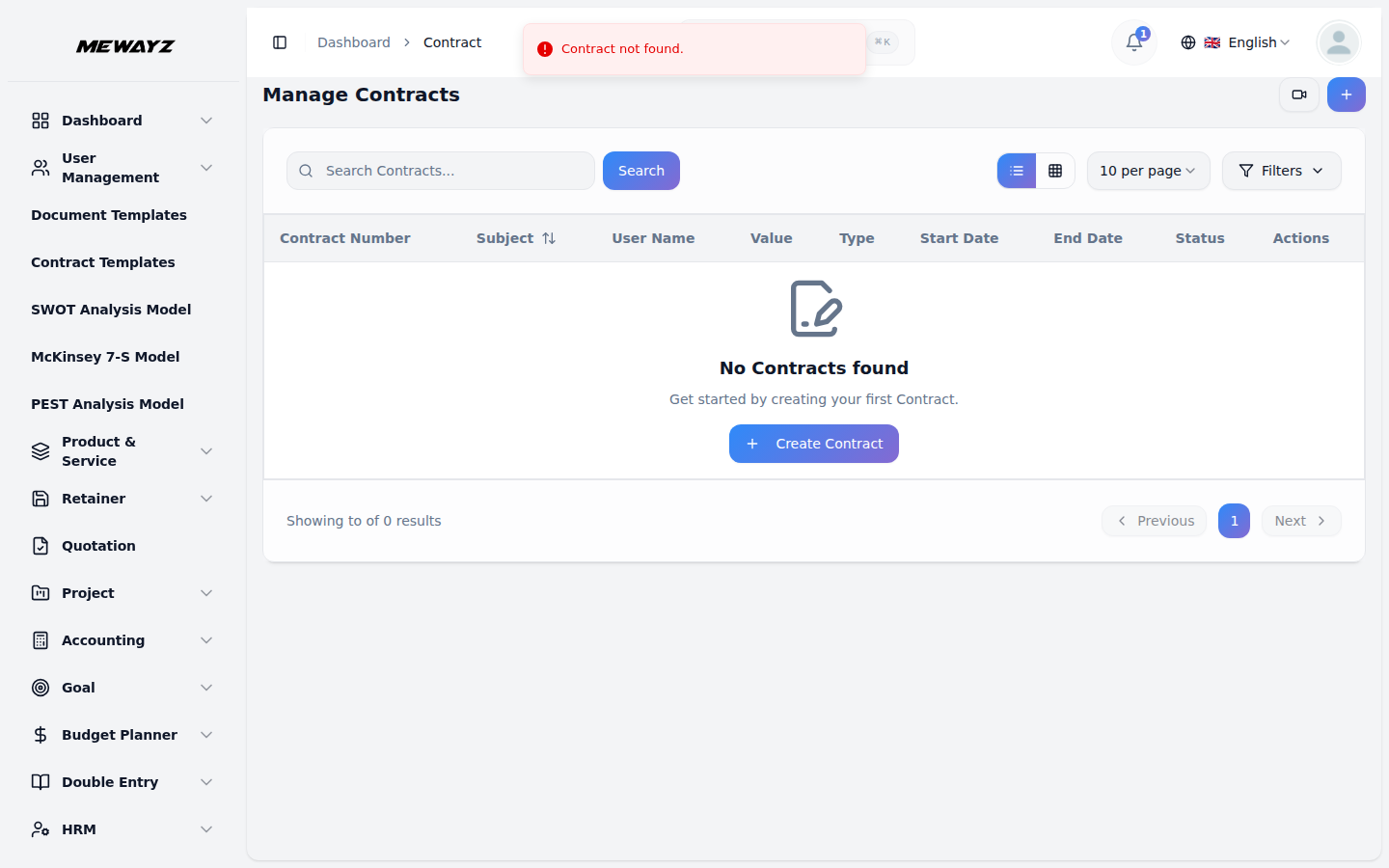
- On the Contracts page, you will first see a summary
- Below this summary, you will see a list of all the
- To add a new contract, just click the “Create” button at
showing total contracts, this month’s total contracts, this week’s total contracts, and last 30 days total contracts. This helps you quickly see how many contracts are being added.
contracts that have already been made. Each one shows information like contract ID, subject, user name, contract value, type, start date, end date, and status.
the top. A form will open where you can fill in all the details. You need to type the subject, pick a user from the dropdown, enter the value, choose a marketing type, add the start and end date, and write a description.
Manage Contract
- Once you make a contract, it will show up in the list
- The “Convert to Template” button saves the contract
- The “Duplicate” button makes a copy of the contract
- The “View” button lets you open the contract and see
with other contracts. Next to each contract, you will see buttons that let you manage it.
format for future use, but you need to buy the Contract Template Add-On to use it.
quickly.
more details and do more actions. You can also edit and delete the contract if you want.
View Contract
- When you click the “View” button or the contract ID, you
- At the top of the view page, there are several buttons.
- Other buttons at the top let you email the contract,
- You can also sync contracts with Google Drive, OneDrive,
- If you want a different look, you can change the view to
- The contract will get completed after both the company,
will go to the contract view page. Here, you will see full details of the contract like general information, status any files attached, and a section for comments and notes. There is also a renewal list where you can add new contract renewals by clicking the “Create” button on that list.
One button is for Business Process Mapping where you can see process maps or add a new one if you have the Business Process Mapping Add-On.
duplicate it, download it, preview it, or even sign it.
and many other storage Add-Ons if you have those Add-Ons activated.
a grid layout instead of the usual list.
and the user signs the contract.
Managing Contract Types
- The Contract Types page lets you set up different types
- You can create new types, edit the names, or delete them
of contracts to help keep things organized.
as needed.
- Once the contract is assigned to a user, that user can
view the list of contracts assigned to him on his dashboard. The user can view, edit, or delete the contract details easily through the action column.
- If the user clicks on the view button, he can view the
- The user can also download the contract easily with the
general details of the contract, attachments, comments, notes, and contract renewal history. At the top of the view page, there are two buttons available through which the user can update the status of the contract whether the contract is pending, declined, or closed.
download button given at the top.