Google Meet Integration in Mewayz (Formerly Seemless)
Simplify and streamline your online meetings with seamless Google Meet integration in Mewayz (Formerly Seemless). Improve collaboration and productivity.
Introduction
The Google Meet Integration system is a comprehensive video conferencing management platform that connects your business operations with Google Meet’s video conferencing services through secure OAuth2 authentication and Google Calendar API integration. This system requires initial configuration through System Settings where you configure Google OAuth2 credentials (Client ID and Client Secret), followed by OAuth authentication with Google, and then meeting creation and management functionality. Once properly configured and authenticated, users can create, schedule, and manage Google Meet video conferences directly from the platform with automatic Google Calendar integration, participant invitation management, and comprehensive tracking through intuitive list and calendar views.
How To Install Google Meet Add-On?
To Set Up the Google Meet Add-On, you can follow this link: Setup Add-On.
Integration with Multiple Add-Ons
- If the Add-Ons like Google Calendar and Outlook Calendar are enabled, and if you enable the toggle
button given for Google Meet, then the meeting that has been created will be visible on Google Calendar and Outlook Calendar.
- Outlook Calendar
- Google Calendar
How To Use Google Meet Add-On?
System Settings – Google Meet Configuration
- To set up Google Meet integration, navigate to the Settings module and locate the Google Meet
- Once you have entered the Client ID and Client Secret and enabled the integration, you must
- You can generate the Client ID and Client Secret key with the help of the link given below: https://console.cloud.google.com
- Once authentication is complete, the systemis enable to create and manage Google Meet meetings
Settings section. Once you enable the Google Meet Integration toggle the it require some field setup, which contain Client ID, Client Secret and Calendar ID.
authenticate with Google by clicking the “Authenticate” button. This will redirect you to Google’s OAuth consent screen, where you’ll be authenticated for the application to access your Google Meet.
automatically. This configuration step is essential and must be completed before you can create any Google Meet meetings in the system.
Google Meet Management
- Before creating meetings, the system will check if you have properly configured and
- Once the OAuth2 credentials are properly configured and you’ve authenticated with Google, you
authenticated the Google Meet integration. If the configuration is incomplete, you will see appropriate error messages guiding you to complete the setup in System Settings.
can add new Google Meet meetings by clicking the “Create” button on the Google Meet page.
Google Meet Management
- Meeting Creation Process:
- Enter a descriptive title for your meeting to help participants identify the purpose and
- Add a detailed description to provide additional context and information about the meeting
- Select the participants you want to invite using the multi-select dropdown – you can choose
- Select the host from the dropdown for the meeting.
- Set the start date and time for your meeting using the date/time picker to schedule when the
- Specify the duration of the meeting in minutes to help participants plan their time accordingly
- Choose the meeting status (Scheduled, Started, Ended, Cancelled)
content.
agenda or objectives.
multiple participants from your system’s users.
meeting should begin
User Management
- When you create a meeting, all invited users will automatically see the option to join the
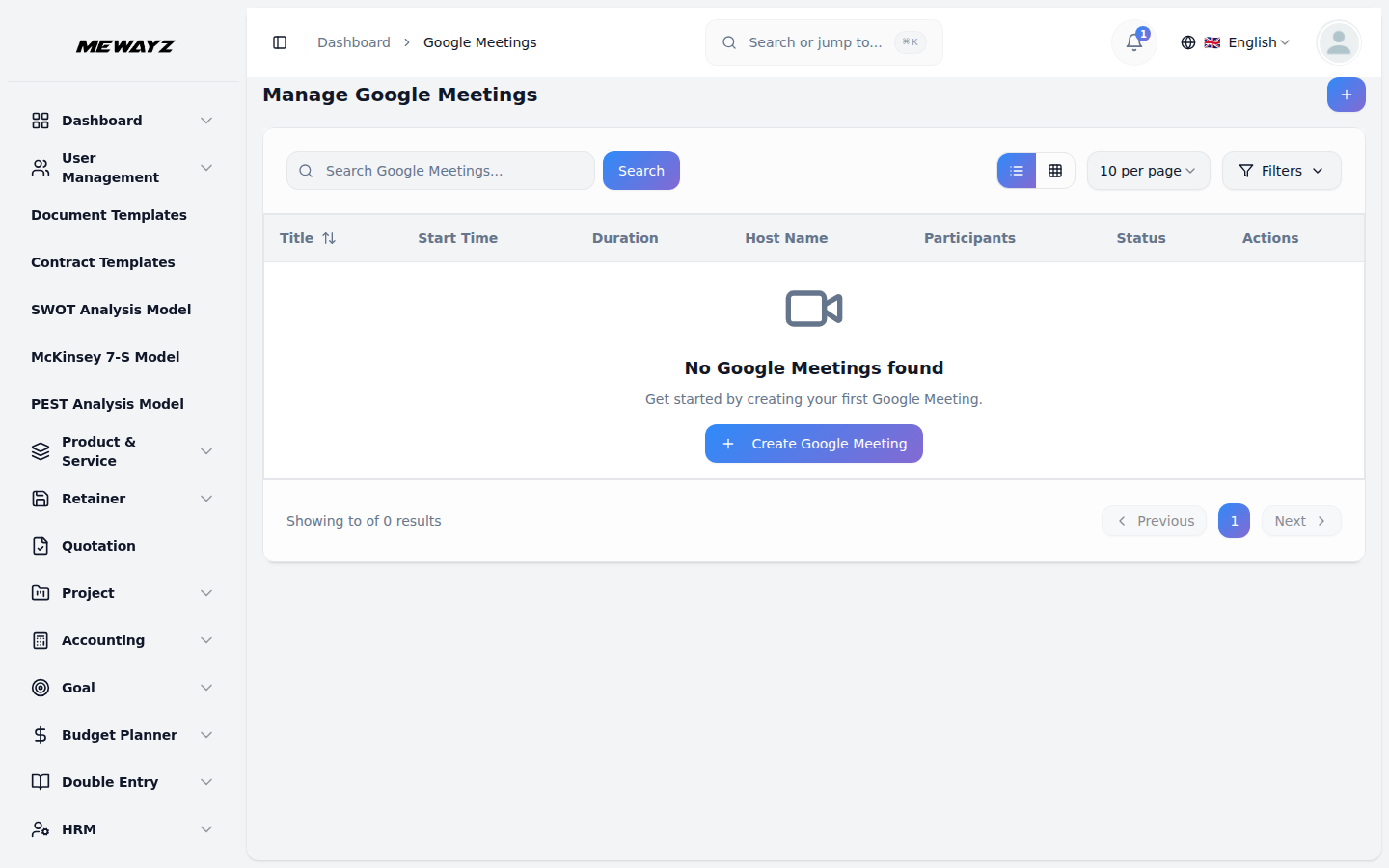
- The meetings list page displays all scheduled meetings with columns showing Title, Start Time,
- You can use the Search and Filters buttons to manage your meeting list effectively. For each
meeting when they log into the system, making it easy for participants to access meetings without needing separate invitations or meeting details.
Duration, Host Name, Participants, Status, and available Actions.
record, you can use the action buttons such as the Join Meeting Button to Join URL for users, View for accessing detailed meeting information, Edit the record to update any details, or Delete for removing meetings from the system.