Inventory Integration in Mewayz (Formerly Seemless)
Enhance efficiency and accuracy with inventory integration in Mewayz (Formerly Seemless). Simplify your inventory management process and boost productivity.
Introduction
The Inventory Add-On allows businesses to efficiently manage their stock levels, track inventory movements, and calculate costs of goods sold (COGS) using various valuation methods like FIFO, LIFO, and Weighted Average. By enabling inventory tracking, users can set reorder and maximum stock levels, upload product images, and perform adjustments such as increases, decreases, or recounts. Detailed reports, including stock valuation, COGS, and stock movement, provide insights into inventory performance across different warehouses, helping users make informed decisions about stock management. With intuitive features like filtering, searching, and visual charts, businesses can streamline their inventory operations and maintain accurate, up-to-date records.
How to Install the Add-On?
To Set Up the Inventory Add-On, you can follow this link: Setup Add-On.
How to use the Inventory Add-On?
Inventory Items
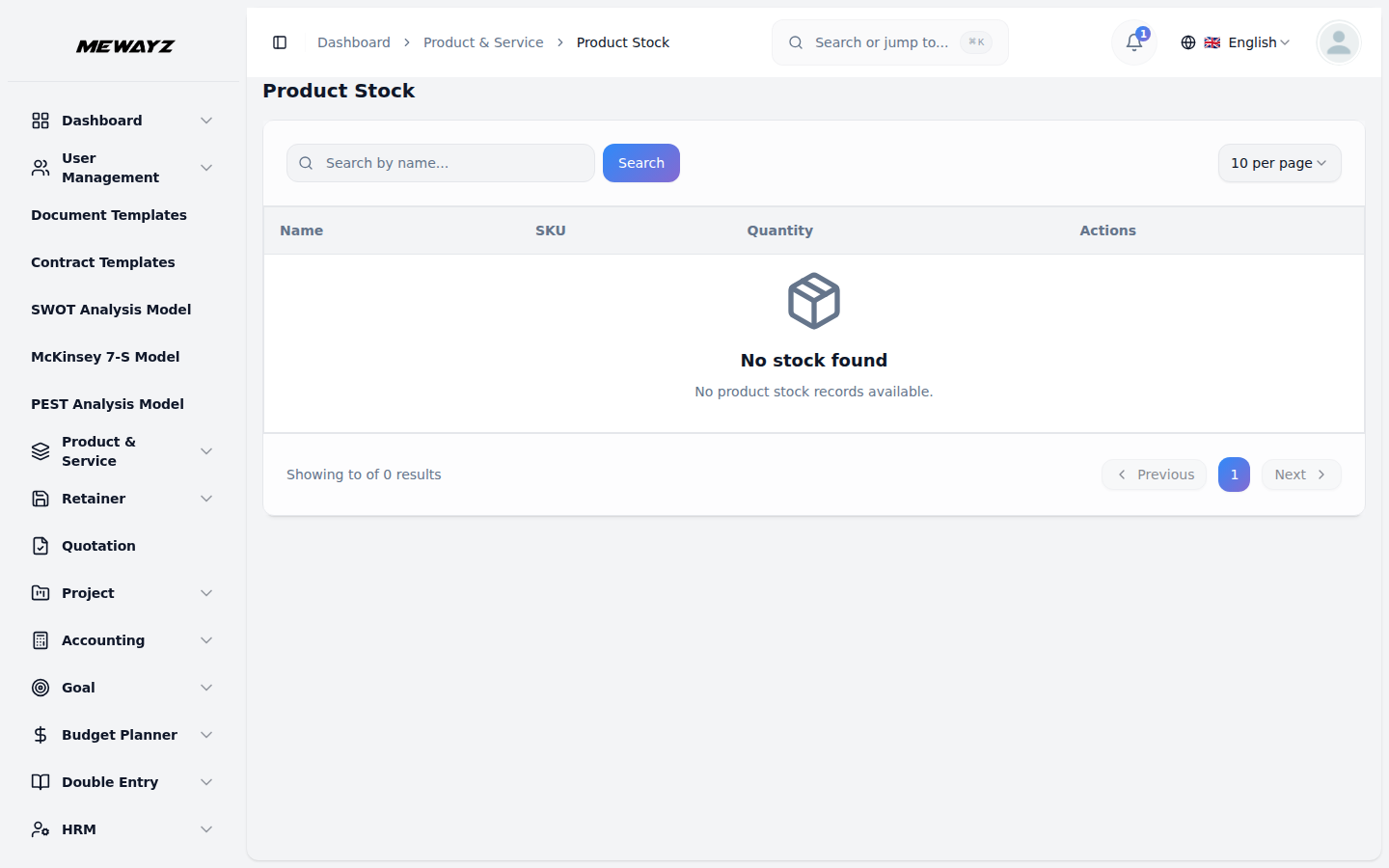
- To access the inventory fields, navigate to the Product & Service Add-On from
- The inventory-related fields shown in the form are only visible when the
- In the form, you can upload a Product Image by clicking the Browse button and
- Set your inventory levels by entering the Reorder Level (the minimum quantity
- Choose your Valuation Method from the dropdown menu, which includes options for
- Enable the Track Inventory checkbox if you want to track this item in your
- After filling in all the necessary information, click the Update button to save
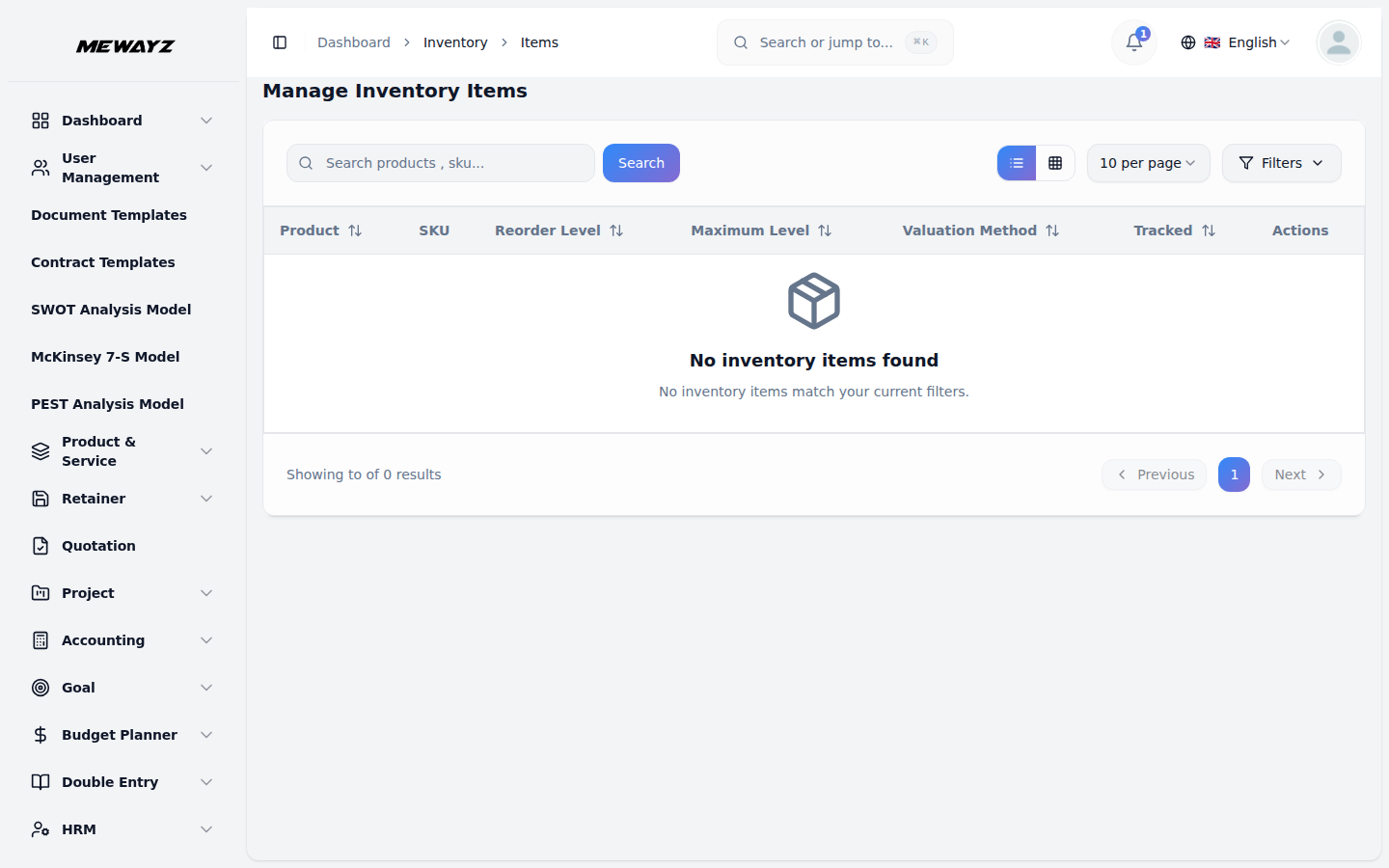
- The list page displays all products in a table with columns for Product, SKU,
- Use the search button to find the specific inventory record. Click the Filters
- You can use the toggle between list view and grid view. Available actions: You
the main menu. Once there, select the Item page and click the Create Item button to open the item creation form.
Inventory Add-On is enabled. If the Inventory Add-On is not enabled, these fields will not appear in the form.
selecting an image file. For Additional Images, click the Browse button to select and upload multiple product images.
that triggers reordering) and Maximum Level (the maximum quantity to maintain in stock).
FIFO, LIFO, and Weighted Average.
inventory system, or leave it unchecked if tracking is not required.
the item. Once the item is created and saved, it will appear as an entry in the Inventory Items section, where you can view and manage it.
Reorder Level, Maximum Level, Valuation Method, Tracked, and Actions.
button to access filtering options, including selecting Valuation Method from the dropdown (options include FIFO, LIFO, and Weighted Average) and choosing Tracked from the dropdown (options include Yes and No). Click the Apply button to filter the data or the Clear button to reset the filters.
can use the view to see the product details.
Inventory Adjustments
- To create a new adjustment, click the “Create” button at the top of the
- Fill in the Adjustment Details section by selecting the Adjustment Date,
- In the Adjustment Items section, select an Inventory Item from the dropdown
- Enter the Quantity you are adjusting, and the system will automatically display
- Click the Add Item button to include additional items in the same adjustment if
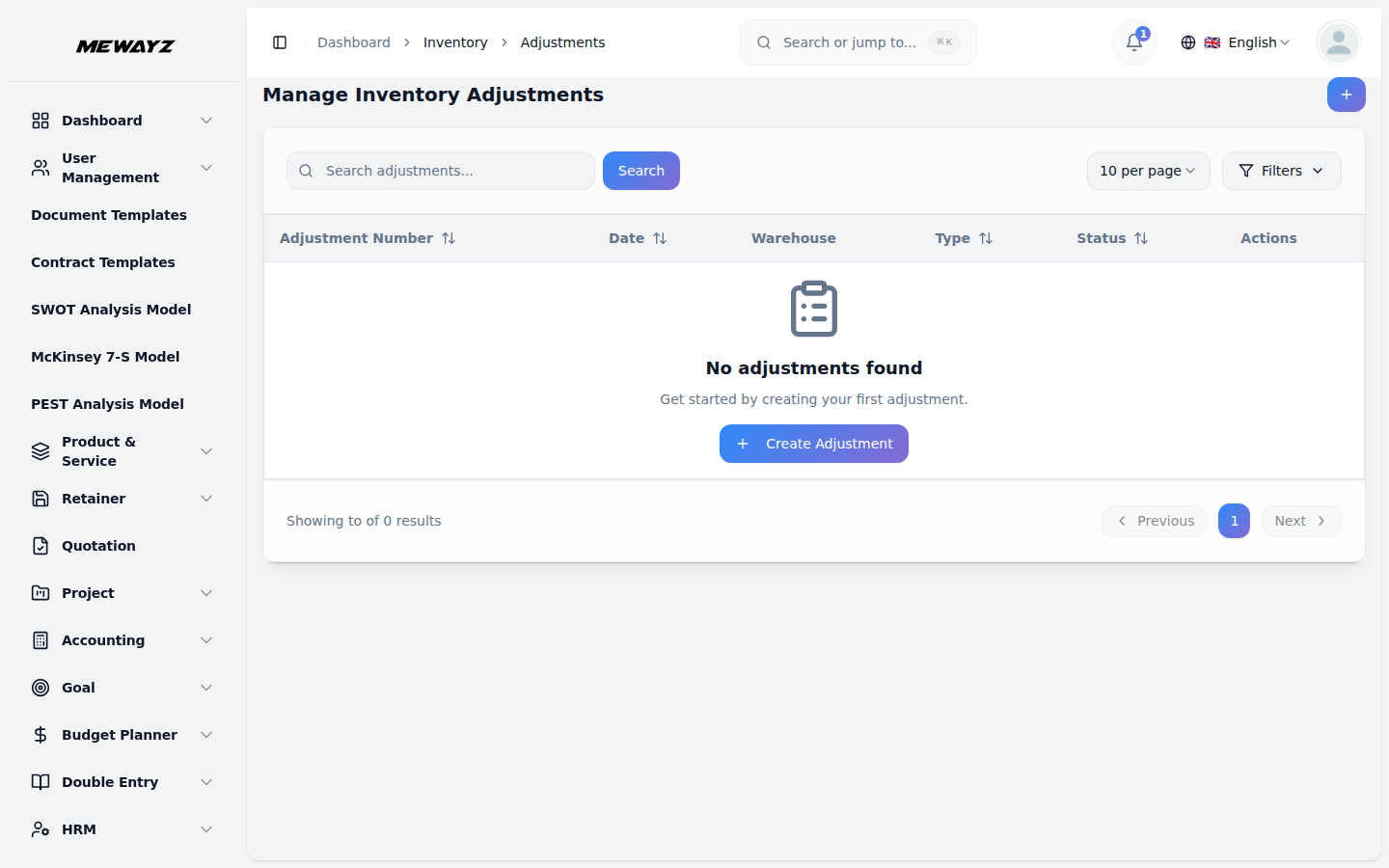
- The list page displays all adjustments in a table with columns that include
- Click the Filters button to access filtering options, including selecting Type
- Click the Filters button to access filtering options, including selecting Type
- In the action column, you can use the action option like approve (clicking on
- After clicking the Approve option, the system displays the post action and hides
- When you post a sales invoice, the system automatically calculates Cost of Goods
inventory adjustments page.
choosing a Warehouse from the dropdown menu, and selecting the Adjustment Type from the dropdown (options include Increase, Decrease, and Recount). At the end, enter the reason.
menu. The Current Quantity field displays the existing stock level for the selected item.
the Adjusted Quantity based on your entry. At the end add the note.
needed.
Adjustment Number, Date, Warehouse, Type, Status, and Actions. Use the search function to find the specific adjustments record.
from the dropdown and choosing Status from the dropdown. Click the Apply button to filter the data or the Clear button to reset the filters.
from the dropdown (options include Increase, Decrease, and Recount) and choosing Status from the dropdown (options include Draft, Approved, and Posted). Click the Apply button to filter the data or the Clear button to reset the filters.
this will make the status in Approved), view (clicking on this to see the inventory adjustment details), and delete (clicking on this to remove the existing data).
the Approve option; clicking Post will update the stock levels in the system and change the status to Posted.
Sold (COGS) based on the selected valuation method, creates COGS history records, reduces available stock quantities, and updates inventory valuation accordingly.
Valuation Methods Explained:
- FIFO (First In, First Out) means the system uses the cost of
- LIFO (Last In, First Out) means the system uses the cost of the
- Weighted Average means the system calculates the average cost
the oldest stock first when calculating costs. For example, if you bought 10 items at $5 each in January and 10 items at $7 each in February, when you sell items in March, the system will use the $5 cost first. This method works well for businesses selling products that expire or get outdated quickly.
newest stock first when calculating costs. Using the same example above, when you sell items in March, the system will use the $7 cost first instead of $5. This method shows your current buying prices more accurately in your cost reports.
of all your stock and uses that for cost calculation. In the example above, the system will use $6 (the average of $5 and $7) as the cost. This method is simpler and keeps your costs steady even when purchase prices change.
Automated Stock Valuation and COGS Handling
- When you post a purchase invoice, the system automatically creates cost layers
- When you post a sales invoice, the system calculates Cost of Goods Sold (COGS)
for tracked inventory items, records the purchase date, quantity, and unit cost, updates available stock quantities, and maintains cost history for accurate valuation.
based on your selected valuation method, creates COGS history records, reduces available stock quantities, and updates inventory valuation accordingly.
Stock Valuation Report
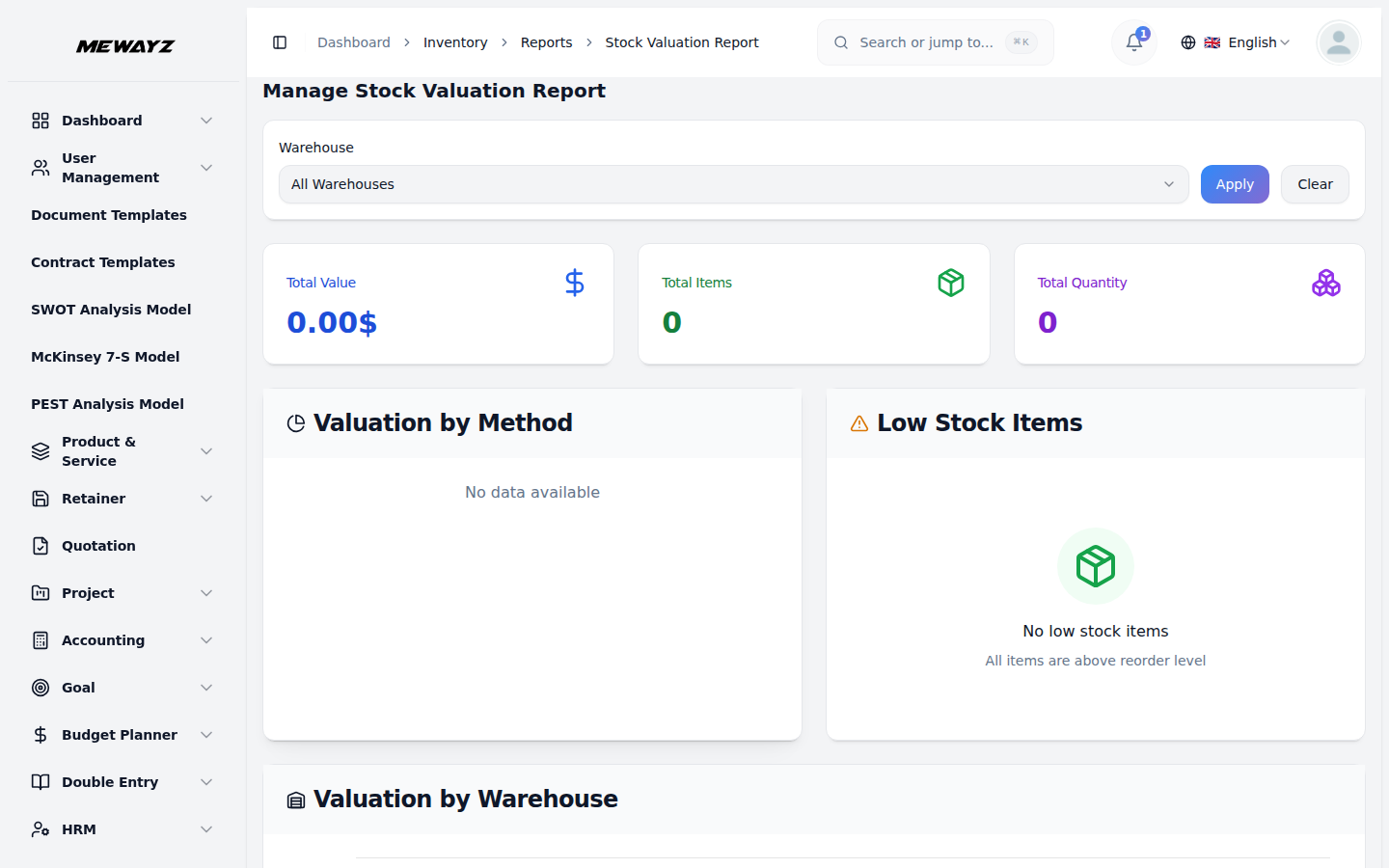
- On the Manage Stock Valuation Report page, you can view complete inventory
- Use the Warehouse filter dropdown to select a specific warehouse or choose “All
- The Valuation by Method chart displays a visual breakdown of your inventory
- The Low Stock Items section alerts you to items that have fallen below their
- The Valuation by Warehouse chart provides a bar graph showing the inventory
valuation data across your warehouses. The page displays key metrics, including Total Value, Total Items, and Total Quantity in summary cards at the top.
Warehouses” to view consolidated data. Click the Apply button to update the report or the Clear button to reset the filter.
valuation methods, showing the distribution between FIFO, LIFO, and Weighted Average methods used across your inventory items.
reorder level. When all items are above the reorder threshold, the section displays “No low stock items” with the message “All items are above reorder level.”
value distributed across different warehouse locations, allowing you to compare stock values by location at a glance.
COGS Report
- On the Manage COGS Report page, you can analyze Cost of Goods Sold (COGS) data
- Use the Date Range filter to select a specific time period, and choose a
- The Monthly COGS Trend chart displays a line graph showing your cost of goods
- The Top 10 Items by COGS section ranks your inventory items by their cost of
- The Recent COGS Transactions section shows the latest cost of goods sold
to gain profitability insights by product and track historical cost trends. The page displays key metrics, including Total COGS, Total Quantity Sold, and Avg Unit Cost in summary cards at the top.
Warehouse from the dropdown to filter by location or select “All Warehouses” for consolidated data. Click the Apply button to update the report or the Clear button to reset the filters.
sold over time, allowing you to track historical cost trends and identify patterns across months from January through December.
goods sold, helping you identify which products have the highest costs and analyze profitability by product. When no data is available, the section displays “No data found.”
transactions, providing visibility into recent inventory movements and their associated costs. When no transactions exist, the section displays “No COGS transactions.”
Stock Movement Report
- On the Manage Stock Movement Report page, you can track all inventory
- Use the Date Range filter to select a specific time period, and choose a
- The Movement by Type chart displays a bar graph comparing Purchase (IN)
- The Monthly Movement Trend chart shows a line graph tracking both “In” and “Out”
- The Recent Movements section displays the latest inventory transactions,
transactions and monitor increases, decreases, and current balances across your warehouses. The page displays key metrics, including Total In, Total Out, and Net Movement in summary cards at the top.
Warehouse from the dropdown to filter by location or select “All Warehouses” for consolidated data. Click the Apply button to update the report or the Clear button to reset the filters.
transactions against Sales (OUT) transactions, giving you a clear view of inventory inflow and outflow by transaction type.
movements over time, allowing you to identify patterns and trends in your inventory transactions across months from February through December.
providing real-time visibility into stock changes. When no recent activity exists, the section displays “No recent movements.”