McKinsey 7-S Model Integration in Mewayz (Formerly Seemless)
Discover how integrating McKinsey 7-S Model in Mewayz (Formerly Seemless) improves productivity and organizational effectiveness. Try it now!
Introduction
The McKinsey 7-S Model is a strategic management software that helps organizations analyze and improve their internal alignment using seven key elements: Structure, Strategy, Systems, Staff, Skills, Shared Values, and Style. This Add-On allows users to create comprehensive organizational assessments linked to specific challenges, assign team members and roles, track progress through different stages, and manage multiple models through various viewing options including grid, kanban, and tree structure layouts.
How To Install The Add-On?
To Set Up the McKinsey Add-On, you can follow this link: Setup Add-On.
Note: This Add-On is dependent on the Planning Add-On, so you need to purchase it first.
How to use the McKinsey 7-S Model Add-On?
Managing the McKinsey Model
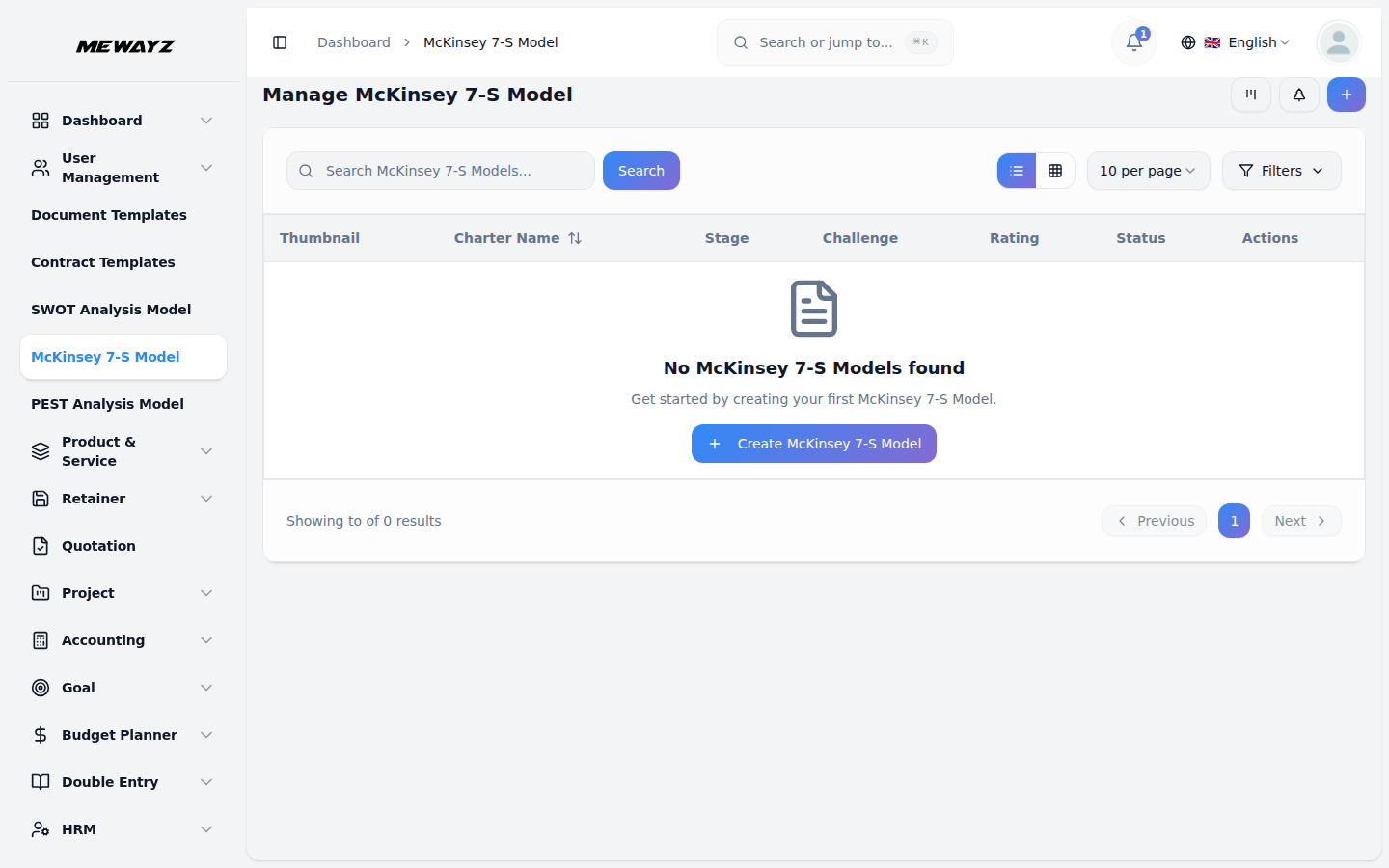
- The default List View displays all McKinsey 7-S Models in a comprehensive table format with
- The main table presents detailed information with columns for Thumbnail providing visual
- In the Action column, you have powerful options available: View to access complete model details
multiple management options. At the top of the page, you’ll find buttons for Create to add new models, plus three alternative viewing options for different management preferences.
identification, Charter Name of the model, Status fetched from System Setup showing current progress, Stage fetched from System Setup indicating model phase, Challenge fetched dynamically from Challenge Table showing associated business objectives, Rating for performance tracking, and Action column with management options.
and all strategic information, Edit to modify any aspect of the model including organizational assessments and team assignments, and Delete to remove models that are no longer relevant to your business strategy.
Creating the McKinsey 7-S Model
- To create a new McKinsey 7-S Model, click the “Create” button at the top of the page. Start by
- Select the Challenge from the dropdown menu, which fetches data from the Challenges. Important
- Upload a Thumbnail Image to provide visual identification for your model, and Upload Video
- Assign the Users involved in this strategic analysis by selecting users, and choose the
- Continue with the seven strategic elements by entering detailed information for Structure,
- Add comprehensive details for the system, outlining the processes, procedures, and information
- Enter information for Skills, explaining the capabilities and competencies your organization
- Include relevant Notes for additional observations, methodology details, or strategic insights,
entering the Name for your strategic analysis model, which should clearly identify the scope or focus of your organizational assessment.
note: if the current date is greater than the Challenge End Date, you will not be able to create a McKinsey 7-S Model, ensuring all models remain aligned with active or future business challenges.
content if you have supporting presentations or explanatory materials. Choose the appropriate Status from the dropdown menu, which fetches options from System Setup, and select the relevant Stage also fetched from System Setup to indicate the current phase of your analysis.
appropriate Role from the Role dropdown to define team member responsibilities. Add a comprehensive Description that outlines the purpose and scope of your organizational assessment.
explaining how your organization is organized and the formal relationships between different departments and levels. Document your Strategy by identifying your plan to achieve competitive advantage and business objectives.
systems that support your organization’s operations. Complete the staff assessment by documenting Staff, identifying the people in your organization and their capabilities.
possesses. Document Shared Values by identifying the core beliefs, culture, and guiding principles that drive your organization’s behavior and decision-making.
and attach supporting files through the Attachments field for research data, organizational charts, or reference materials. Once all fields are completed, click “Create” to create your McKinsey 7-S Model.
Viewing the Model
- To view a McKinsey 7-S Model, click the “View” button in the Action column of any model in the
- The view page is structured with multiple sections starting with the General section which
- The Description section shows the complete purpose and scope of the organizational assessment as
- The Attachments section provides access to all supporting files including research data,
- The Structure section displays all information about how your organization is organized and the
- The Strategy section shows your organization’s plan to achieve competitive advantage and
- The Staff section shows information about the people in your organization and their
- The Skill section displays the capabilities and competencies your organization possesses. This
- The Shared Values section contains the core beliefs, culture, and guiding principles that drive
- The Notes section contains additional observations, methodology details, strategic insights, or
- At the bottom is the Comment section where you can post comments easily. You can also attach
list. This opens the McKinsey 7-S Model Details page with a comprehensive view of all information organized in sections for easy navigation.
displays the model name, associated challenge, thumbnail image, uploaded video with playback controls, current status fetched from System Setup, stage information, assigned users from the Users Table, their designated roles from the Roles Table, and star rating system.
entered during creation. This section provides detailed context about the model objectives and methodology. An “Edit” button is available below this section to add new description content.
organizational charts, reference materials, or any other documents uploaded during the model creation process. You can download or view these attachments directly from this section. Use the “Edit” button below to upload additional attachments.
formal relationships documented during the assessment. This section shows the complete organizational structure details identified during the strategic analysis process. Click the “Edit” button below to include additional structural information.
business objectives.The System section displays the processes, procedures, and information systems that support your organization’s operations. The “Edit” button allows you to document additional strategic elements as they are developed.
capabilities. Review all staff-related documentation and human resource assessments. The “Edit” button enables you to document additional staff information as organizational changes occur.
section provides detailed information about organizational skills and competencies identified during the assessment. Click the “Edit” button to include additional skill documentation.
your organization’s behavior and decision-making. This section shows all values documentation from the analysis. Use the “Edit” button to add new shared values as organizational culture evolves.
any supplementary information added during the model creation. This section provides context and additional commentary on the McKinsey 7-S analysis. Click the “Edit” button to include additional notes and observations.
files in the comments section if needed.
Kanban View
- The Kanban View organizes McKinsey 7-S Models into columns based on their current stage,
- Each Kanban card shows essential information including the total number of assigned users
- The drag and drop functionality allows you to update the stage of any McKinsey 7-S Model by
providing a workflow-based visualization with drag and drop functionality. You can easily move models between different stages by dragging cards from one column to another.
working on the model.
simply moving it to the appropriate column. Action buttons on each card include View for detailed information, Edit for modifications, and Delete for removal. This view is ideal for tracking the progress of multiple models through different stages of completion.
Tree View
- To switch to Tree View, click the “Tree View” button at the top of the page. This view presents
- The Tree View includes expand/collapse functionality, indicated by the arrow icon next to each
- In the Tree view, each challenge appears as a blue header bar with the number of plans
a hierarchical structure that displays challenges and their associated McKinsey 7-S Models in an expandable tree format, showing the parent-child relationships clearly.
challenge name. Clicking the arrow allows you to expand the challenge to reveal its associated models or collapse it to show only the challenge title, making navigation more organized and focused.
indicated. When expanded, it displays the associated models beneath it in card format, showing key details including the model name, status, stage, and rating displayed as stars.